
Using Revisions to Undo Changes Made in WordPress
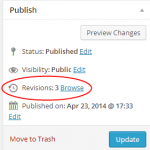
Sometimes, you make changes and you wish you could revert back to an earlier version of a WordPress post. The good news is that you can revert back with revisions. This makes it very easy to undo changes and go back to a version of the post created in the past. The feature we will be working with in this WordPress Tutorial is called “Post Revisions” or “Revisions.” When you create a WordPress Post and you update it you will have created two versions of the post. WordPress saves the revised version, which is the new version and the previous …
Can you Paginate a WordPress Post?
Sometimes, you may have a post for your blog that’s really long or contains many parts. You’ve probably seen other blogs that use a few pages for these types of posts and display a separate image for each section of the post. This is called pagination and its possible do to this with your WordPress Posts. Why Would You Want to Paginate a WordPress Post? There are many reasons to paginate a WordPress post, but the main reason is to reduce bounce rates and increase your pageviews. When a visitor goes to multiple pages on your website, it looks good …
An Easy Way to Display Your Related Posts and Pages in WordPress

Maybe you’ve seen other blogs that show three to five related pages or posts at the end of each page or post on their blog. This is a very powerful way to keep readers on your website, help them find good information and provide many other benefits. In this WordPress tutorial we will cover the easiest way to display related posts and pages below your content in WordPress. Using YARPP or Yet Another Related Posts Plugin to Display Related Posts and Pages Start by downloading the YARPP plugin, here. Then, you will need to upload the plugin by going to …
A Beginner’s Guide to the Settings Tab in WordPress

One of the many tabs found in your WordPress dashboard is called the “Settings” tab. This section contains many sub-sections and will often contain even more, as you install plugins. The main sub-sections found here include: General Writing Reading Discussion Media Permalinks You will use most of these sections at least once for your new WordPress website. In this WordPress tutorial, we are going to take a quick look at each of these sub-sections of the Settings tab. The “General” Settings Area of WordPress When you go to Settings >> General, you can make a few adjustments to the basic …
A Beginner’s Guide to the Tools Section in WordPress

The Tools section found in WordPress allows you to access a few specific features. There’s not much to this section, unless you’ve added plugins that come with tools. However, this section of WordPress does have three sub-sections called: Available Tools Import Export In this short WordPress Tutorial, we will take a quick look at each of these sub-sections. The “Available Tools” Section in WordPress You can access this section by going to Tools >> Available Tools within your WordPress dashboard. Here, you will find a list of all your tools. If you’re new to WordPress and it’s a new installation, …
A Beginner’s Guide to the Users Tab in WordPress
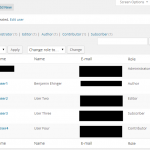
The Users tab found in your WordPress dashboard will allow you to add, delete and make changes to all the users you want to be able to access your website. This section contains three sub-sections called: All Users Add New Your Profile You will use these sub-sections whenever updating user information or adding a user. In this WordPress Tutorial, we are going to take a quick look at all three sub-sections of the Users tab. The “All Users” Section in WordPress When you go to Users >> All Users you will get a list of all the users for your …
Understanding the Plugins Tab in Your WordPress Dashboard
As a beginner to WordPress, it’s important to familiarize yourself with each part of your WordPress dashboard. One of the tabs you will probably use quite a bit is called the “Plugins” tab. WordPress plugins allow users to customize the function, look and feel of their WordPress blog. Some plugins help you with search engine optimization, while others help prevent spam and many other tasks. No matter what you want to do, there’s probably a plugin for it. In this WordPress tutorial, we are going to cover the three sub-sections found within the Plugins tab. They include: Installed Plugins Add …
A Full Beginner’s Guide to the Appearance Tab in WordPress – Part Two

We already covered the first three sub-sections found under the Appearance tab in WordPress. You can find those by reading Part One of this WordPress Tutorial, here. In this second part to our guide to the Appearance tab in WordPress, we will be covering the Menus, Header, Background and Editor sub-sections. It’s important to note that the sub-sections under the Appearance tab may be a bit different for you. It depends on which theme you’re using. Some will remain the same, but your theme may provide more specific sub-sections to use. The Menus Sub-Section in WordPress When you first go …
A Full Beginner’s Guide to the Appearance Tab in WordPress – Part One

The appearance tab in WordPress contains many sub-sections. For this reason, we will be splitting this WordPress tutorial into two parts. The first part will cover the sub-sections called Themes, Customize and Widgets. We will cover the rest of the sub-sections in the second part of this tutorial. The Themes Section in WordPress You will find the Themes section under Appearance within your WordPress dashboard. This is the first sub-section of the Appearance tab and includes all your uploaded themes. WordPress comes, by default, with the Twenty Twelve, Twenty Thirteen and Twenty Fourteen themes. These are all great, but most …

Can you Paginate Comments in WordPress?
Have you ever seen a blog that actually has multiple pages of comments? You may not get that many comments, as a beginner, but you may still want to paginate your comments in WordPress. In this short WordPress tutorial, we will show you the easiest way to paginate your comments. Paginating Your WordPress Blog Comments The process to paginate your comments in WordPress is very easy. Start by logging into your WordPress dashboard and going to Settings >> Discussion. This is where you will find the option to break your comments into pages. It’s found under the “Other Comment Settings” …