

Sometimes, you make changes and you wish you could revert back to an earlier version of a WordPress post. The good news is that you can revert back with revisions. This makes it very easy to undo changes and go back to a version of the post created in the past.
The feature we will be working with in this WordPress Tutorial is called “Post Revisions” or “Revisions.” When you create a WordPress Post and you update it you will have created two versions of the post. WordPress saves the revised version, which is the new version and the previous version for you automatically.
How To Use Post Revisions to Undo Changes in WordPress
When you update your post, you will see a new section in WordPress appear:
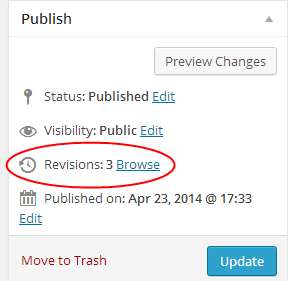
The “Revisions” section will show up with the number of revisions and a “Browse” link, which you can use to view all the revisions you’ve made.
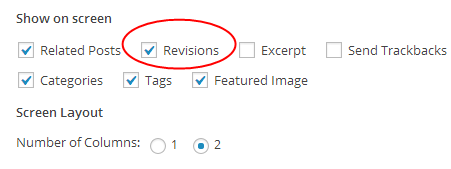
You can also change the screen options for your posts to display the revisions below the post edit section.
Once you click the browse button, you will be able to see the versions side-by-side. This allows you to see the changes you made and whether you want to keep them or revert back to the original version.
This also comes in handy if you have a technical problem, while writing a post. If you didn’t get the opportunity to save it, you may have an autosave version you can restore.
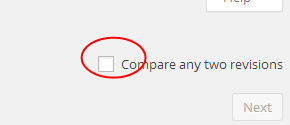
After entering the “Compare Revisions” screen, you also have the option to compare any two versions. Just check the box at the top of the page and you will be able to compare any two of the versions of the post.
You can restore any version by clicking the “Restore This Revision” button.
Whenever you’re unsure if you like a change you made or you want to revert back to an older version of the post, you can use the “Revisions” section to compare and restore any version of the post. This can come in handy for WordPress bloggers in many different situations.
