

Beginners are always looking for new ways to add cool features to their WordPress blogs. One of those features is the Google search box they see on other sites. You can add this search box to your WordPress website and it’s pretty easy to do.
Creating Google Search to Your WordPress Site
Some themes have this feature built into the layout of the actual theme. If this is the case, you may just need to enable the option or add the search widget to the right spot.
However, if your theme doesn’t have Google search built in or the search it uses isn’t that good, you can add a custom Google search box with the following steps.
- Step #1 – Go to the Goolge Custom Search Engine, here.
- Step #2 – Click “Create a Custom Search Engine”
- Step #3 – Add your website domain name to the “Site to Search” section

- Step #4 – Select the Language and Name your Search Engine
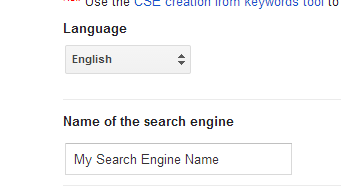
- Step #5 – Click the “Create” button
Now, you have crated your custom Google search for your website.
Note: You can also adjust the “advanced” settings if you need to exclude something from the search or you want to customize the search results that will show up on your website.
Adding Custom Google Search to Your Website
After creating your search, you will need to add it to your WordPress website. Login to your WordPress dashboard and go to the Appearance >> Editor section. You will be looking for either a searchform.php file.
Some themes don’t come with this file. If this is the case, create the searchform.php file in notepad or another text editor. Then, once you add the Google search code, you can upload it to your theme folder in cPanel.
This is the section you will post the code from Google into, which you get by clicking the “Get Code” button.
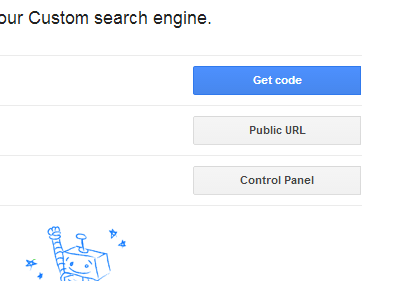
Make sure the searchform.php file only contains the code you copied from Google.
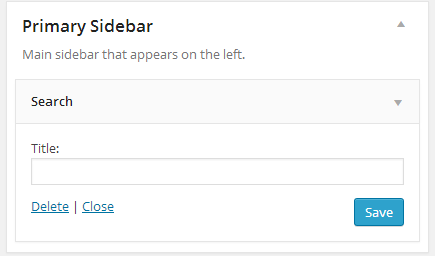
Once you’ve edited or created the searchform.php file, you will need to go to Appearance >> Widgets. You will need to locate the search widget and add it to the section of your site you want to display your custom search box.
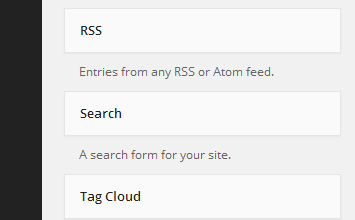
You can give the search a title, as well.
How to Customize Your New Search Box
Along with adding the Google custom search box to your website, you may want to customize it to fit better with your design. This can be one from your Google account. Go back to the Google Custom Search website and find the “Customize” tab. It’s located in the “Look and Feel” section.

This section will allow you to change the font, colors and other options associated with your Google Custom Search box. You can use the same colors as your site or matching colors to make the search look like it’s a part of your WordPress website.
This section of the Google Custom Search website is pretty easy to use. Just choose the part of the search you want to change, such as the actual search box or the search button. Then, you will have all the different options you need to customize this section of the search.
Not only can you customize the search box, but also the way the results show up. You can edit the title, URL and snippet to match the color of your specific WordPress site.
The Google Custom Search website will also allow you to view Statistics from users that have searched your site. This is a great way to see what visitors are looking for and provide better content for your specific users.
Along with the “Customize” tab, you can use the other three tabs to change the look and feel of your custom Google search. Make sure you save your changes, get the new code and replace the old code in the searchform.php file or your changes won’t show up on your website.
Now you know how to add the custom Google search box to your WordPress website. This can make it much easier for users to find the right content when they are searching on your website.
