

Sometimes, adding Google Maps to your WordPress blog can be very beneficial. It can make it very easy for visitors to find your location and get directions. This might be the difference between a new customer and your competition snaking them away.
Adding Google Maps to your WordPress blog is very easy. It can be done manually or you can use a plugin to make this happen. In this WordPress tutorial, we will show you how to add Google Maps to WordPress in both ways.
Adding Google Maps to WordPress Manually
The first thing you will need to do is go to the Google Maps website. Now you will want to type in the location you want to show on your website and verify the right location pops up. After you verify you have the right location, click the settings icon and select, “Share and embed map.”
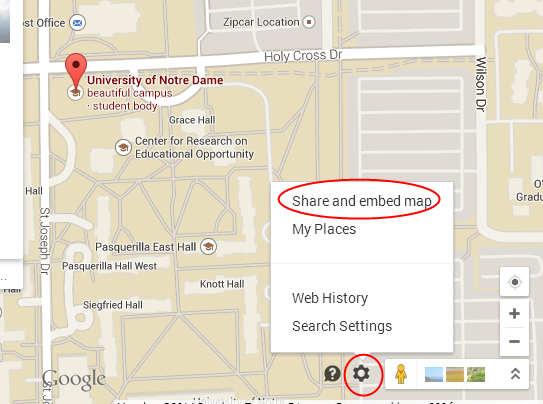
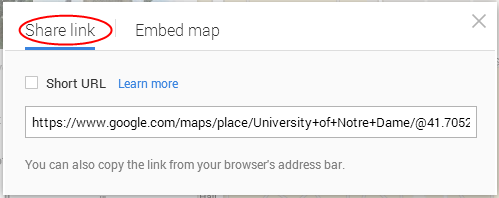
If you use the “share link” option, you can simply link to the map from your WordPress blog.
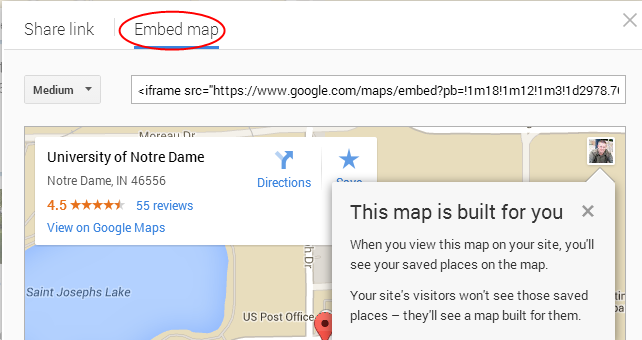
However, if you want to put the actual map on your WordPress blog, just click the “Embed map” option. This will give you the code you need to insert into the right place on your WordPress blog.
Using a Plugin to Add Google Maps to Your WordPress Blog
If you prefer to use a plugin to add Google Maps to your blog, you can use the MapPress Easy Google Maps plugin. Download the plugin, install it and activate it on your WordPress blog.
Now, you can access it below the “settings” tab in your WordPress dashboard.

From the MapPress menu you will be able to adjust the basic settings. This will allow you to decide where you want the map to show up, whether on posts and pages or just one or the other. You can also choose to display the map automatically at the top, bottom or turn this option off. The final option under “Basic Settings” will allow you to show the directions in your blog or on Google.

You can also use the “Map Controls” to enable dragging of the map, shortcuts, a scroll wheel zoom, different map types and other controls. You may want to play around with this section of the plugin until you figure out what fits your needs best.
A little further down, on this page, you can adjust the “Map Settings.”

This section will allow you to customize your map to fit your site better. You can change the border color, size and alignment of your new Google Map.
There are a few other settings menus you can use to adjust more advanced settings, as well. However, most beginners can just use the basic settings and the map settings sections to create the perfect map for their needs.
Adding a Google Maps Widget to Your WordPress Blog
If you only want to add the map in your sidebar, you can use the Google Maps Widget plugin to display a fast-loading Google map in your sidebar. Just download, install and activate the plugin. Once the plugin is activated, you need to go to Appearance >> Widgets. Find the Google Maps Widget and drag it to where you’d like it to show up.

After you do this you can open the widget and change the size, address, text and other options associated with the map. This provides you with an easy way to put your map in the sidebar of your WordPress blog.
This will put your map on every page and post with a sidebar. If you want to make it easy for your visitors to find you and get directions to your business location, this plugin makes it very easy. In addition, it’s very light, so it won’t slow your site down much at all.
Now, you have three easy ways to incorporate Google Maps into your WordPress blog. Whether you want to do it manually or you prefer to use a plugin, it should be much easier to show your visitors where you are located with these options.
