
 Are you aware of the many different keyboard shortcuts offered with WordPress? When you want to speed up your posting and really learn how to make WordPress easier to work with, understanding these shortcuts is very important.
Visual Post Editor Keyboard Shortcuts for WordPress
Instead of using the mouse to choose all your different formatting icons, you can use your keyboard. Here are some of the most common shortcuts you can use from your keyboard.
- Ctrl + b = Bold
- Ctrl + i = Italics
- Ctrl + c = Copy
- Ctrl + v = Paste
- Ctrl + x = Cut
- Ctrl + a = Select All
- Ctrl + z = Undo
- Ctrl + y = Redo
- Ctrl + [any number] = Insert heading size
- Alt + Shift + n = Checking Spelling
- Alt + Shift + l = Align Left
- Alt + Shift + j = Justify Text
- Alt + Shift + d = Strikethrough
- Alt + Shift + a = Insert Link
- Alt + Shift + c = Align Center
- Alt + Shift + r = Align Right
- Alt + Shift + u = Unordered List
- Alt + Shift + q = Quote
- Alt + Shift + m = Insert Image
- Alt + Shift + s = Remove Link
- Alt + Shift + o = Numeric List
- Alt + Shift + u = Unordered List
- Alt + Shift + m = Insert Image
- Alt + Shift + w – Full Screen distraction free writing mode
- Alt + Shift + t = Insert More Tag
- Alt + Shift + h = Rich text editor help
- Alt + Shift + p = Insert Page Break tag
Plain Text Editor Shortcuts for WordPress
Just like the Visual Editor, you can use keyboard shortcuts for the Text Editor in WordPress. This makes it easier to do a few functions. There are not nearly as many of these shortcuts as you can use with the Visual Editor, however. Here are the shortcuts for the Text Editor in WordPress.
- Ctrl + x = cut
- Ctrl + v = paste
- Ctrl + c = Copy
- Ctrl + y = Redo
- Ctrl + p = Print
- Ctrl + z = Undo
- Alt + Shift + p = Publish
- Alt + Shift + f = Full screen distraction free writing mode
Comments Screen Keyboard Shortcuts for WordPress
When you start to receive a large volume of comments, using a few keyboard shortcuts can help you move through your comments faster. These shortcuts won’t be turned on by default, however. Turning on these shortcuts requires you to go to Users >> Your Profile. Here, you will need to check the Keyboard Shortcuts checkbox.
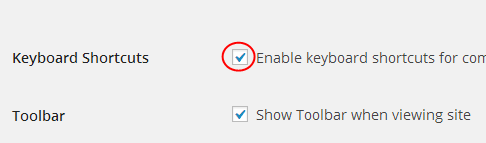
After turning these shortcuts on you can use the following:
- J = Next Comment
- K = Previous Comment
- A = Approve Comment
- D = Delete Comment
- Q = Quick Edit a Comment
- Z = Restore a Comment form the Trash
- U = Unapprove Comment
- R = Reply to a Comment
- X = Select Multiple Comments
After you use the select multiple comments function, you can use the following shortcuts for bulk actions:
- Shift + U = Unapprove Selected Comments
- Shift + Z – Restore Selected Comments from the Trash
- Shift + T – Move Selected Comments to the Trash
- Shift + A = Approve Selected Comments
- Shift + D = Delete Selected Comments
Using these shortcuts can make working within your comments section much easier.
Why Use Keyboard Shortcuts within WordPress?
When you decide to use the available WordPress keyboard shortcuts, you can really speed up the editing process within pages, posts and in the comments section. However, there is a learning curve with using these shortcuts. It will take time to get used to, but with time, you will become proficient with all of the necessary WordPress keyboard shortcuts.
Start with just a few of the shortcuts or one section and work your way through the rest. Some of the most common include the copy, paste and cut shortcuts, along with the select all shortcut. These four commands work between just about all text programs, such as notepad and Microsoft Word. Other commands may work between programs, as well.
