

If you’re sick of using PowerPoint or some other program for your presentations, you don’t have to anymore. PowerPoint presentations can be hard to share on a websites, but WordPress users can create presentations with an entirely different system.
Why Should You Use WordPress for Presentations?
Even though PowerPoint is the most popular choice for creating presentations, it’s not easy to share these on your website. Often, you have to use a third-party software to make this happen.
By creating your presentations in WordPress, you can convert more visitors into buyers and subscribers. You won’t have to worry about the third-party software to get the presentation onto your website. This provides a huge benefits and all of your slides can even become indexed by the search engines.
Using the HTML5 SlideShow Presentations Plugin
The HTML5 SlideShow Presentations Plugin for WordPress makes it easy to create presentations and display them on your website immediately. Start by downloading and installing the plugin on your WordPress website.

After installing the plugin, you can access it from the “HTML5 Presentations” menu found in the sidebar of your WordPress dashboard.

Click the “add new” option and you will be able to create your first presentation from a screen that looks much like the Post Editor screen in WordPress.
Below the content area, you will find a few options for the way your slides will work and the size of your presentation.
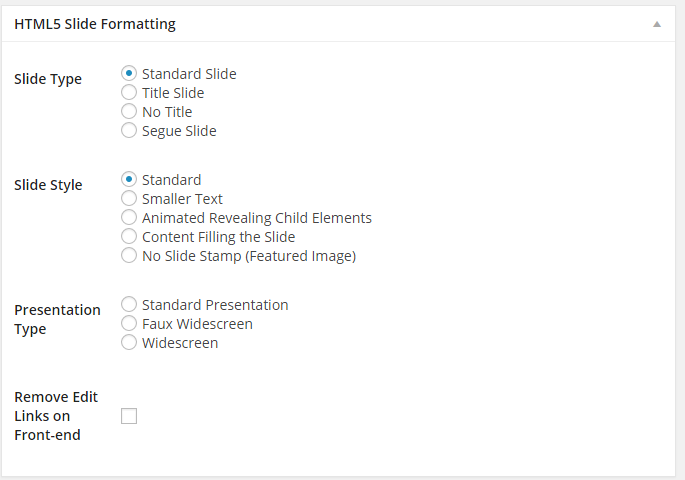
Start by choosing the slide type. The first slide you create will become the title slide, so make sure to choose this option.
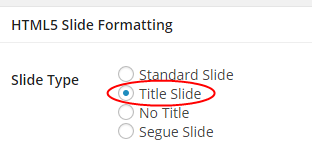
After you have chosen this option, you can choose the slide style, which will allow you to use smaller text, animations and other options. You will also have the ability to adjust the presentation type to widescreen or faux widescreen.
Now, you will need to repeat the process to add more slides. However, you can choose a parent slide from the HTML5 Slide Attributes to add a new slide to your presentation.

Do this for as many slides as you want to create for the presentation. Of course, you can always edit the presentation or just each individual slide, if necessary.
To edit your slides, just go to HTML5 Presentations>>HTML5 Presentations option within your WordPress dashboard. From here, you can click on the slide or presentation you would like to edit. Each slide with a dash next to it is a child slide and belongs to a parent slide of the presentation.
Displaying your Presentation on Your Website
Once you get the presentation created, you can display it on your website by creating a new page. Within the Page Edit screen, you will have a new HTML5 Presentation menu on the right side.

Just select the presentation you want to display on the page and save your changes.
Can you Use Custom Styles?
Advanced WordPress users may want to use custom styles for their presentation. This is also possible with this plugin. You will need to create a new stylesheet to replace the plugin’s style sheet, however. If you don’t have knowledge of CSS, please don’t attempt this.
When you do this, you will want to use the file name, html5slide-replace.css. Then, upload this stylesheet into your theme or your child theme directory. If you want to add a few extra style rules, you will want to use the stylesheet name, html5slide-style.css. Then, upload the file into your theme or child theme directory.
How to Present Your SlideShow
Of course, you may want to use your presentations for a conference or meeting. This can be done just by launching a full-screen browser, such as Google Chrome. Then, just use the arrow keys to move from one slide to the next. If your slide happens to get stuck, just click the empty area on the screen and you will unfreeze the presentation.
This is a much easier way to get your presentation up and on your website without the hassle of PowerPoint and a third-party software. If you want to display professional presentations, use this WordPress plugin instead. It will not only make it easier to create and display presentations on your WordPress site, but it will also provide SEO benefits.
