

If you need to create pricing tables in WordPress, you probably want to make them look really good. However, this can be a challenge, if you don’t know how to do your own coding.
Since the visual post editor doesn’t provide a pricing table generator, you have to either create them yourself or find another way. Using a plugin always seems like a good solution, but most of the WordPress plugins for tables are simply not designed for pricing tables. Here’s a better solution to help you create awesome pricing tables for your WordPress website.
Using the Easy Pricing Tables Plugin for WordPress
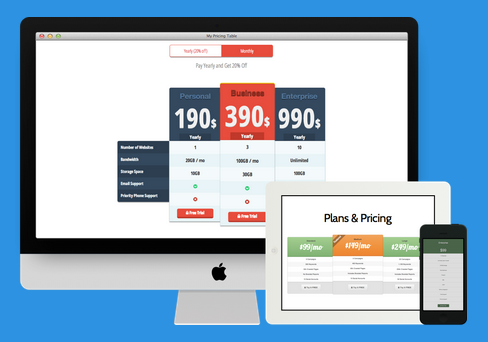
The best way to create amazing pricing tables is with the Easy Pricing Tables Plugin for WordPress. This plugin isn’t free, however. You will need to pay $29 for a single site license, but it will be work it. If you need to use the plugin for multiple sites a five-site license is $49 and an unlimited site license is $149.
After purchasing and installing the plugin, you will have a new WordPress menu item called “Pricing Tables.” You will have to click on this menu and go to the plugin settings page to enter your license key.
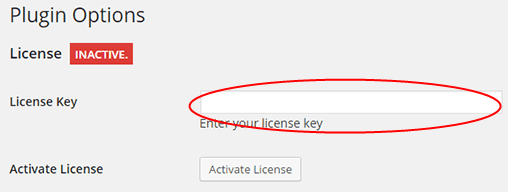
Your license key will be verified and you will have an active sign at the top of this page.
Your Pricing Table Creation
After you’ve activated the plugin and entered the license key, you can go to Pricing Tables>>Add New to create your first pricing table. Here you will find five different templates you can choose from for your design.
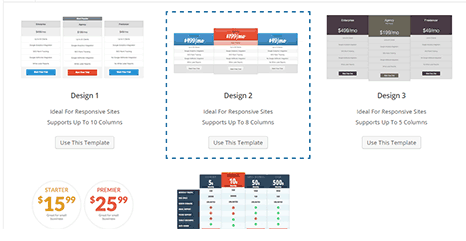
Choose the template you like the best and click on the Content tab to enter the information you want to include on the table. You can enter information, such as the plan name, pricing, plan features, button text and the button URL. If you need an additional column for your table, just click the “New Column” button found in the top right of the page.
Within the content area, you can also mark one of your plans as the featured plan. Just click the “feature” button with the star on it at the top of the column. If the star is colored in, that is the featured column for your pricing table.
After you add content to your pricing table, you can change the settings under the “Design” tab. You can change the color, general settings, font sizes, advanced settings and even use Custom CSS from this area.
Now, you can preview your table to see how it looks. After previewing your table, just save it and it will be ready for use.
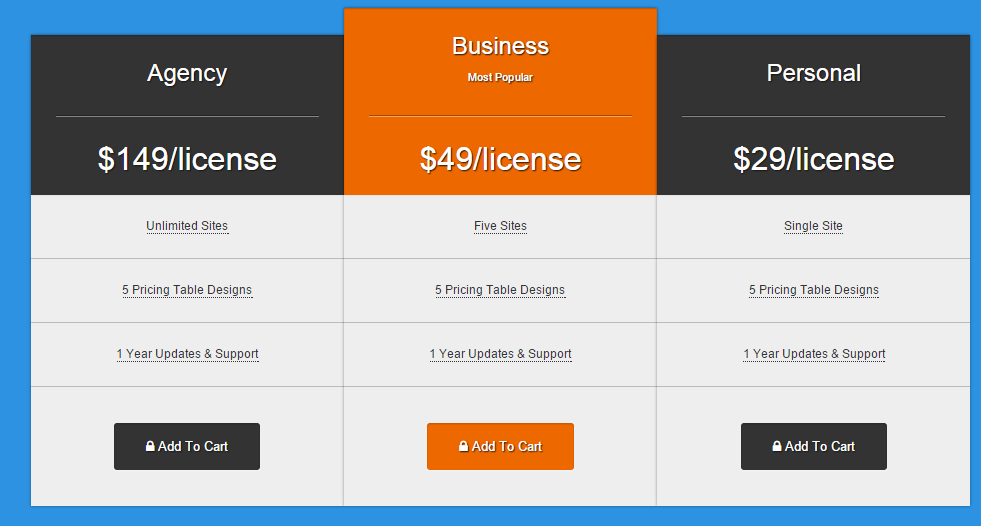
If something doesn’t look the way you want, just edit the table and make the necessary changes. You can edit your table at any time, so if you need to change the price or add specific options, this can be done anytime you want.
What does the Plugin Provide?
The Easy Pricing Tables plugin comes with many features including:
- Five Awesome Templates – You can create your tables with easy by selecting one of the pre-made templates.
- Over 300 Icons – Add icons to your table with plenty of different choices.
- Tooltips – Embed tooltips wherever you would like on your table.
- Pricing Toggles – You can even make your table toggle between yearly and monthly pricing.
- Use Google Analytics for Tracking – You can track the clicks with Google Analytics integration.
- Plenty of Customization – This plugin will even allow you to customize just about every part of the table.
- User-friendly – With the Easy Pricing Tables plugin, you can easily create your tables in just a few minutes without any coding.
- Fully Responsive – Your tables will even work across mobile devices.
Creating the best possible pricing tables could be the difference between looking professional and landing the sale or losing the sale to a competitor. With the Easy Pricing Tables plugin from fatcat apps, you can create amazing looking tables for all your products and services.
Now you can use the Easy Pricing Tables WordPress plugin to create beautiful pricing tables for your website. This plugin makes it very easy to create the right look and help you sell more of your products or services.
