
Adding staff member profiles in WordPress has gotten much easier. With the help of the Staffer Plugin, you can add profiles with ease. No longer will you need to edit templates to make these profiles happen. Instead, you can use the plugin and simplify the process.
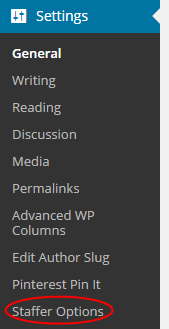
It all starts with activating the plugin. Once it’s activated, you will see a new admin menu called “Staffer Options.” This section will be found under “Settings” and will allow you to make the necessary changes to the plugin.
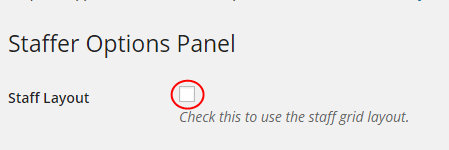
Within the Staffer Options Panel, you can decide how you would like to display the profiles of your staff members. If you want to use a grid layout, just click the “Staff Layout” box.
You will also be able to adjust many other settings within this section including:
- Listings Per Page – This option will allow you to choose how many profiles display on one page.
- Staffer Page Title – You can set the title of your staff page with this option.
- Staffer URL slug – Just like with your WordPress categories, this option allows you to change the URL slug of your staff page.
- Disable CSS – If you don’t want any CSS used, you can disable it by clicking this box.
Other options are also available, such as using custom wrappers, enabling the staff sidebar and adding custom CSS. You can use the “Staff Options Panel” to make the necessary adjustments to your page before displaying it for visitors.
Adding a Staff Member
Once you’ve set up your staff member page the way you want, it’s time to add staff member profiles. This is done from the “Staff” menu found in the WordPress dashboard.
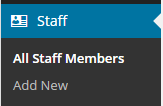
Click the “Add New” option and fill in the information just as you would for a post. You can give the profile a title, which is usually the name and/or position of the person, add social media pages, add a description, add a picture and add contact information. This makes it very easy to set up everything necessary for your staff member profiles.
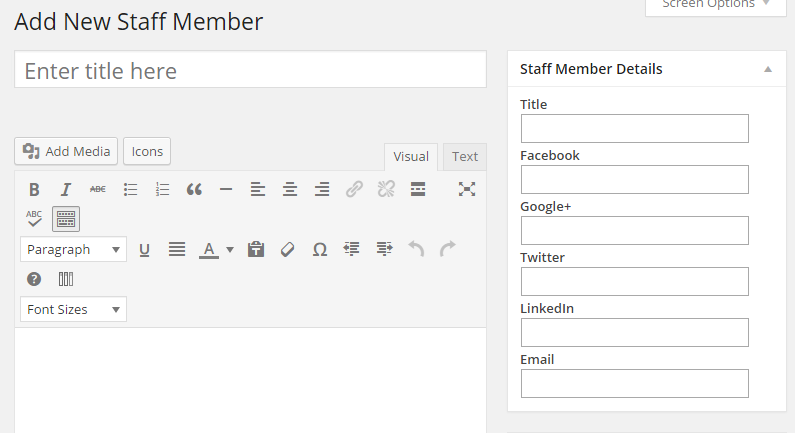
Once you’ve filled out all the necessary information, you can publish the profile.
Making the Profiles Display on your WordPress Website
Once you have added the profiles for all your staff members, you will need to make them display on your WordPress website. This can be done by adding the “Staff” page to custom menus and the navigation menu. Since this page will hold all of your profiles and will link to the individual pages, adding the “Staff” page to your menus is the easiest way to display all of your profiles.
Now you know how to use the Staffer WordPress Plugin to display staff member profiles on your website. Whether you just want to display a couple of profiles or dozens, this plugin makes it much easier in WordPress.
